Vendor network
Your purchase order is already their order.
Connect a vendor that runs on SKUSavvy once. Every PO you send lands in its account as an order, matched to its catalog, ready to confirm and ship. No PDFs, no retyping, no import scripts, no integrations to babysit.
Free 30-day trial, no credit card required.
All native
No PDFs. No retyping. No integrations to break.
Today
01
You email PO_1042.pdf
02
The vendor retypes it, or runs an import script
03
“Can we do 400 instead of 500?”
04
You edit the PO by hand to match
05
The integration breaks on a renamed SKU
06
“Is this confirmed?”
Native on SKUSavvy
01
Your PO lands as a draft order
In the vendor’s outbound orders, with your ship-to, contact, and delivery date filled in.
02
Changes come back on the PO
Each changed line and the vendor’s note. Approve once, and both orders are confirmed.
03
Both orders stay in sync
Move the date or cancel on either side, and the other order follows.
Follow one PO
One order. Two companies. The same screens you’d use.
Step through a purchase order from the moment you send it to the moment both sides confirm it.
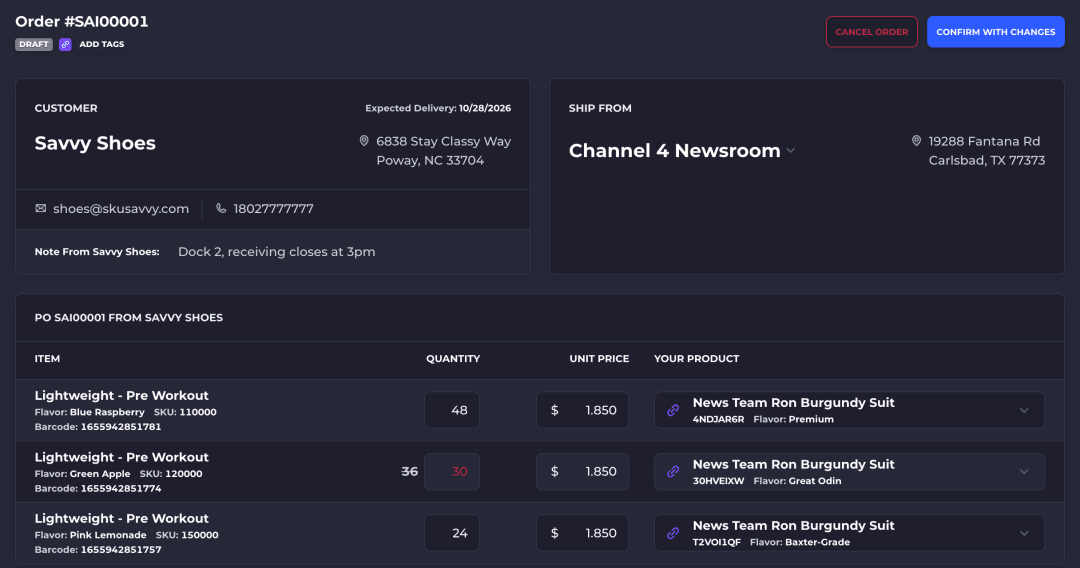
1. It lands as a draft
Your PO arrives in the vendor’s orders, next to every other order.
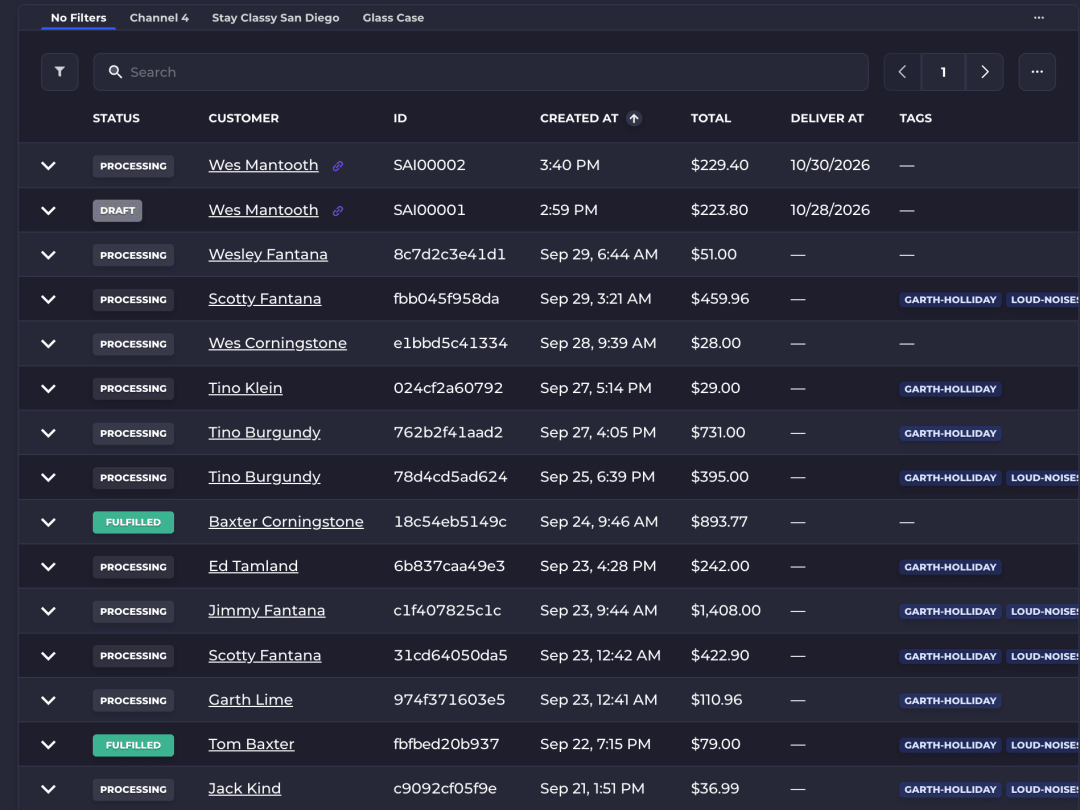
2. Changes come back
Short on stock? The vendor proposes a change on the order.
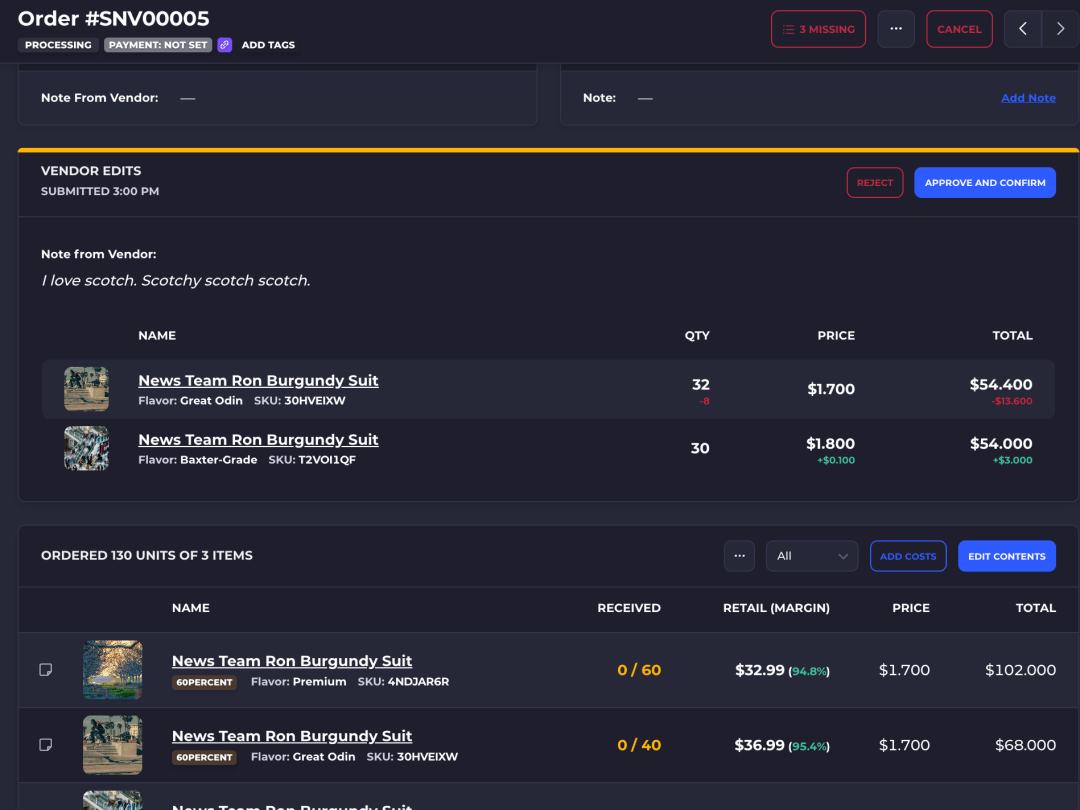
3. It’s their order
Confirmed, the draft becomes an order the vendor fulfills.
Matched once
Your SKUs. Their SKUs. Linked for good.
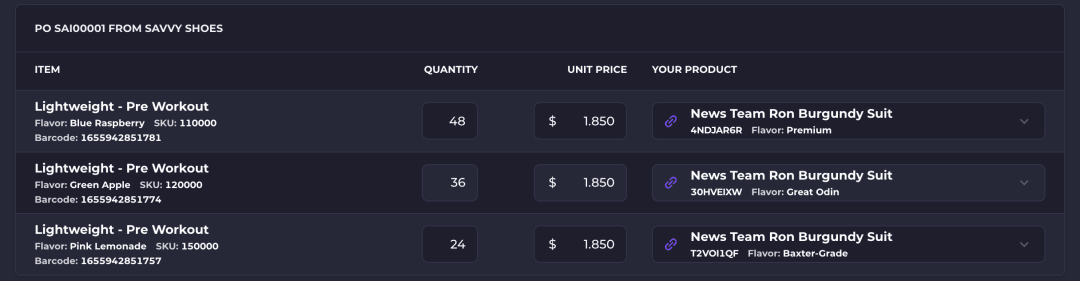
The first time an item shows up on a PO, the vendor matches it to its own product. SKUSavvy suggests the match from your record of the vendor’s SKU, your SKU, or a barcode you share, or the vendor adds your item to its catalog in one click.
Every later PO arrives already matched, and the vendor’s SKU becomes your vendor SKU for that item, kept current when it renames the product.
After confirming
Each company keeps its own books. The network carries what the other needs.
01
Dates and ship-to follow
Move the delivery date or the receiving warehouse on your PO, and the vendor’s order updates until it ships.
02
Either side can cancel
The other order is cancelled with it, with the vendor’s reason on your PO. Not once goods ship or receiving starts.
03
Lines lock on confirm
Once the vendor confirms, items and quantities can’t drift apart. To change them, cancel and send a new PO.
04
Old email links still work
A vendor that connects can open any earlier PO email. The link takes it to the order in its account.
05
Vendors not on SKUSavvy
Keep getting your POs by email, with the vendor portal to confirm or propose changes. Nothing changes for them.
06
Disconnect anytime
Unconfirmed POs go back to email. Confirmed orders stay with each company.
Start with who you buy from
Invite every vendor in one click.
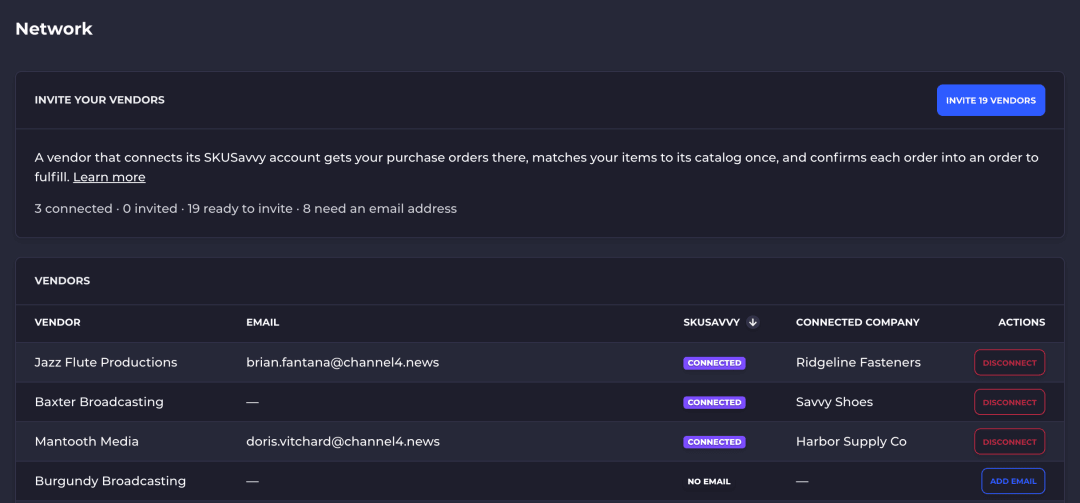
The Network tab under Vendors shows where each one stands: connected, invited, or not invited yet. Invite one vendor, or every vendor with an email address at once. Each invite connects the account it already has, or starts a free trial.
Questions
Before you connect.
What buyers and their vendors ask before connecting.
Does my vendor need a SKUSavvy account?
To connect, yes: an account it already has, or a 30-day free trial it starts from the invite. Vendors that aren’t on SKUSavvy keep getting your purchase orders by email, with the vendor portal.
Do we need EDI, an import script, or an integration?
No. You both run SKUSavvy, so purchase orders, changes, and confirmations move between your accounts directly. There is nothing to build or maintain: send the invite, and the vendor matches each item once.
What can a connected vendor see in my account?
The purchase orders you send it. Its orders, inventory, and catalog stay its own, and so do yours.
How are my items matched to the vendor’s products?
The vendor matches each of your items to one of its products the first time it appears on a PO, from suggestions by SKU and barcode, or adds your item to its catalog in one click.
What happens if we disconnect?
POs the vendor hasn’t confirmed go back to email. Confirmed orders stay with each company.
Can I be connected as both a buyer and a vendor?
Yes. Sell to some SKUSavvy companies and buy from others. The Network tab under Vendors lists both.
Purchase orders, native on both sides.
Start a 30-day free trial, then invite the vendors you already buy from.