Best Inventory Label Maker for Bins, Products and Shipping Boxes
The best inventory label maker is the one that prints the label you scan most, at the size you stock, with a barcode your scanner reads back to the right SKU or bin. For a few shelves, a tape label maker is fine. For hundreds of product and bin labels, you want a thermal label printer and software that fills in the barcodes.
Most label maker reviews test the pantry, not the warehouse
Search for the best label maker and the top results test tape printers on spice jars, cable tags, and file folders. That is a fair test for home organizing. It says little about inventory.
Inventory labels have one job: get scanned. A bin label tells a picker they are at the right shelf. A product label ties a box on the shelf to one variant in your catalog. A shipping label has to come out at 4x6 for the carrier. Print quality matters, but the hard part is where the barcode value comes from and whether it matches your system.
So this page compares label maker types by the inventory job, not by which unit looks nicest on a desk. If you already run SKUSavvy and want the template editor field by field, our step-by-step inventory label maker guide covers that.
One disclosure up front. SKUSavvy is our product, a warehouse management system for Shopify sellers. We don't sell printers or label stock, and we haven't lab-tested printer brands against each other, so you won't see a ranked list of models here.
Start with the label, then pick the printer
Bin and shelf labels
Printed once, stuck on a rack for years. Durability and a clean scan matter more than speed. Usually printed in a big batch when you set up or re-slot.
Product labels
One per unit or per case, often at 2x1. You print them at receiving or when a vendor ships without a scannable barcode. Volume adds up fast.
Shipping labels
SKUSavvy buys every carrier label at 4x6. Printed every day at the pack station, so a desktop printer with roll stock wins over anything handheld.
Paper documents
Packing slips can be 4x6 or letter. Purchase orders, pick sheets, and transfer manifests are letter size, which is a second printer, not a label printer.
A common setup is one desktop thermal printer for 4x6, one for small product labels or a second roll size, and a regular office printer for letter pages. A handheld tape maker becomes the backup for one-off signs.
Inventory label maker types compared
| Type | Good at | Where it falls short for inventory | Pick it when |
|---|---|---|---|
Handheld tape label maker (e.g. Brother P-touch, DYMO, Epson LabelWorks) | Laminated tape on many models, shelf signs, a few dozen labels typed by hand | Slow for hundreds of labels; barcode support and catalog import vary by model | You label a small stock room once and rarely change it |
Desktop direct thermal printer (e.g. Rollo, Munbyn, DYMO, Brother desktop models) | No ink or ribbon; fast 4x6 shipping labels and roll stock like 2x1 | Labels can fade with heat, sunlight, and time; check before using them for long-life bin labels | You ship daily and print product labels at receiving |
Desktop thermal transfer printer | Ribbon-printed labels that last on racks and in cold or bright areas | Ribbons add a supply to manage; more setup than direct thermal | Bin and rack labels need to survive for years |
Portable Bluetooth printer | Printing at the shelf while you walk the floor | Small widths; some only print from their own phone app, not the device print dialog | You relabel on the floor and the printer shows up as a normal device printer |
Office laser or inkjet with sheet labels | Letter-size documents; occasional sheet labels | Sheets of small labels don't line up, because SKUSavvy stretches each label to fill the page | Purchase orders, pick sheets, and transfer manifests |
Brand names are examples of each type from what shows up in label maker searches, not endorsements. Models change often, so check the current specs for roll width, connection, and whether the printer appears in your computer or tablet's print dialog.
Label sizes that cover a Shopify warehouse
These are the sizes SKUSavvy's label templates support and where each one usually goes. Load roll stock that matches the template size.
| Label | Size in SKUSavvy | Printer that fits |
|---|---|---|
Carrier shipping label | 4x6, fixed (carrier labels are always bought at 4x6) | Desktop thermal with 4x6 rolls or fanfold |
Product or variant label | 2x1, 4x2, 4x4, 4x6 or custom | Desktop thermal with a small roll, or the 4x6 printer for case labels |
Bin or shelf label | 2x1, 4x2, 4x4, 4x6 or custom | Thermal transfer for long life, or direct thermal if you reprint often |
Pickup label | 2x4 or 4x6 default templates | Same printer as shipping or product labels |
Packing slip | 4x6 or letter | The 4x6 printer, or an office printer for letter |
Purchase order, pick sheet, transfer manifest | Letter | Office laser or inkjet |
Where the barcode on the label comes from
A label maker prints what you give it. On a tape maker, that is usually whatever you type. In a warehouse that falls apart around the second hundred SKUs, because a typo on a label is a mis-pick waiting to happen.
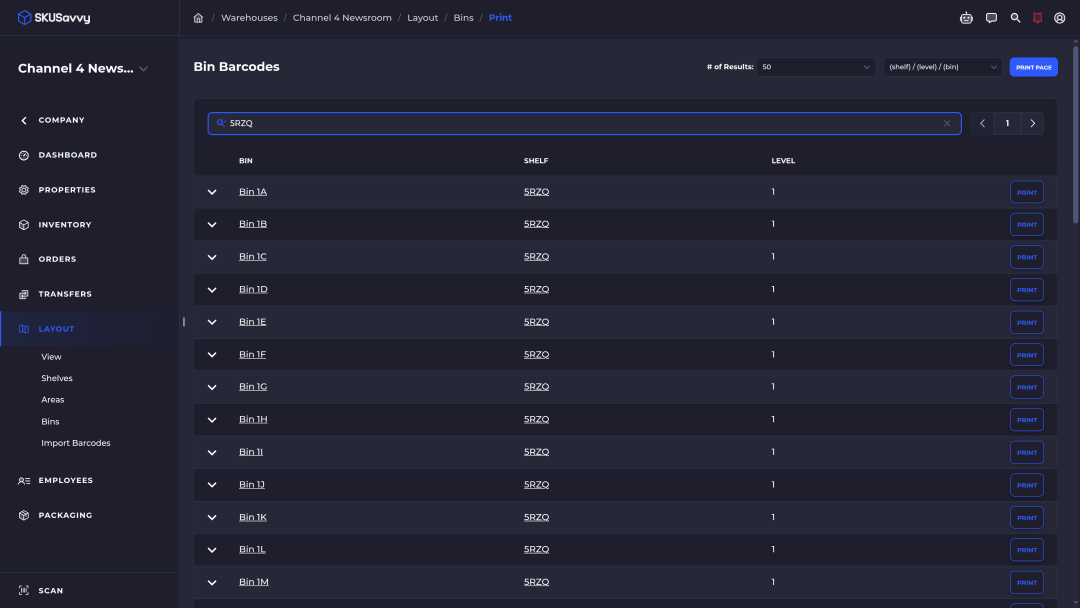
In SKUSavvy the barcode values come from your data. Every bin in your warehouse layout gets a barcode automatically, and you can import the bin barcodes you already have so the labels on your shelves keep working. Product barcodes that already exist in Shopify come in automatically. Products with none can get SKU-based barcodes generated in Code 128 or Code 39.
Barcodes that exist in Shopify sync both ways. A new barcode created first in SKUSavvy stays in SKUSavvy unless you also add it in Shopify. SKUSavvy does not issue GS1 UPC or EAN numbers; if a retailer requires those, buy them from GS1.
For the product label side in more depth, see our Shopify barcode generator walkthrough.
How printing works with SKUSavvy
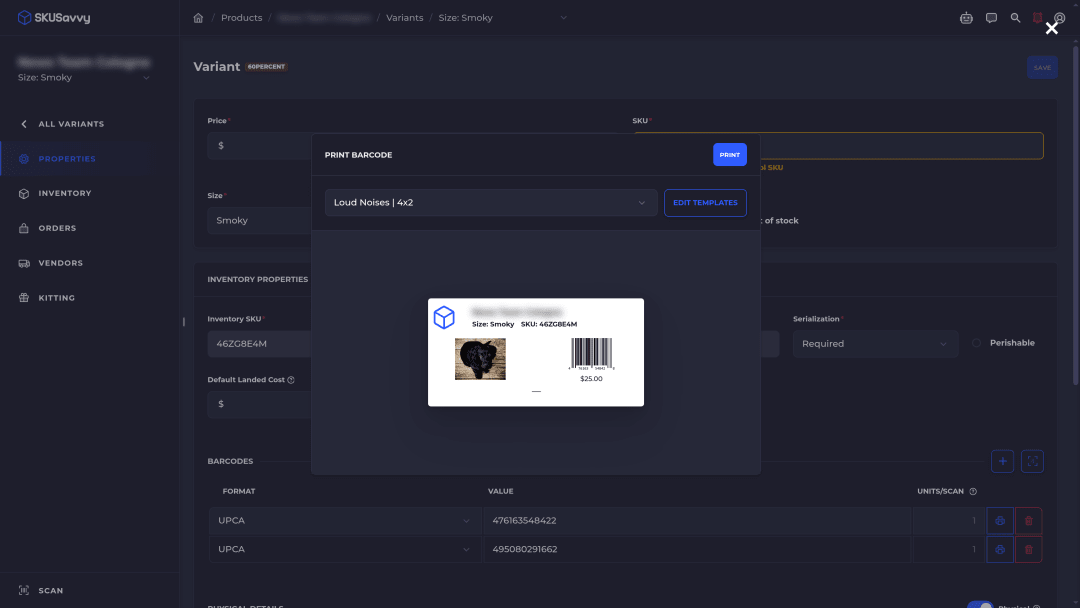
Any printer your device can print to. SKUSavvy prints through the web browser, so there is no printer driver, plugin, or desktop app to install.
iPad and iPhone need AirPrint. On a phone or tablet, the printer must show up in the device's print dialog.
Set paper once per printer. Set the printer's default paper size to the stock you load, margins to None, and scale at 100% in the print dialog, then print one test label.
Template size sets the preview. The label stretches to the paper size the print dialog uses, so match the roll to the template.
Skip the dialog at a busy station. Chrome kiosk printing on Windows, Mac, or Linux sends each label straight to the default printer.
Paper setup, kiosk printing, and fixes are in the printer setup guide.
Features and benefits
| Feature | What it gets you |
|---|---|
Barcodes on every bin automatically | Print shelf and bin labels without inventing codes |
Import existing bin barcodes | Keep the labels already on your racks |
Shopify barcodes pulled in, SKU-based barcodes generated | Every variant becomes scannable, even the ones a vendor shipped bare |
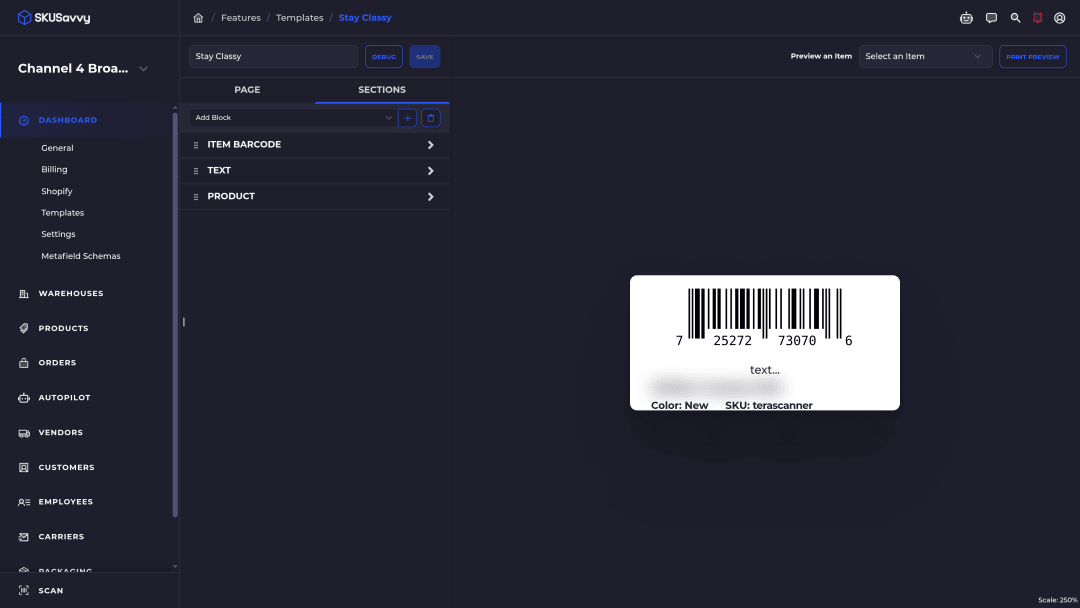
Custom label creator with live fields | One template fills in SKU, name, image, price, meta fields, and barcode, plus lot on check-in and transfer labels |
2x1, 4x2, 4x4, 4x6 and custom sizes | Design for the roll you already stock |
Check-in and transfer labels | Label units after they are counted in from a purchase order or transfer |
Action barcodes | Scan to print the shipping label or packing slip, pick a box size, or move through a batch |
Scan to confirm the bin and the item | Any Bluetooth or USB scanner, or the phone camera, flags a wrong bin or item |
Browser printing on phones, tablets, and computers | Runs as a web app (PWA) at app.skusavvy.com; nothing to download from an app store |
Unlimited users | Receivers and pickers printing labels don't add seats |
Every label type and editor block is documented in the label creator guide linked at the top of this page.
The AI part, kept honest
A label maker doesn't need AI. Barcode values, label templates, and scan checks are rules you can see and test with one print.
The AI in SKUSavvy is Savvy Bot, the in-app assistant. Ask how bin labels or the label editor work and it explains and can take you to the right page, or ask it about your own orders and inventory and have it run a report. It reads and explains. It won't change anything unless you turn on edits and approve each one, and it runs on AI credits.
Peeling a label, sticking it on the right bin, and scanning it stay physical work. The software makes sure the code on that label means the right thing.
Start a 30-day trialWhat it costs
Label printers, rolls, ribbons, and scanners are bought separately from any software, so budget for them on their own.
SKUSavvy is $179/month including your first 249 orders, then a per-order rate that falls as volume grows, with unlimited users and month-to-month plans, as of October 14, 2026. Label templates and printing are part of the plan; postage for carrier labels is billed separately. See SKUSavvy pricing for your volume. The 30-day trial needs no credit card.
Inventory label maker FAQ
What's the best label maker on the market?
There isn't one for every job. For inventory, the best setup is usually a desktop thermal printer that takes the roll sizes you use (often 2x1 for products and 4x6 for shipping) plus software that fills in the barcodes. A handheld tape maker is the best pick only when you label a handful of shelves by hand.
Which is better, Munbyn or Rollo?
Both are names you'll see for desktop thermal printers aimed at 4x6 shipping labels. We haven't benchmarked them against each other. For use with SKUSavvy, the checks are the same: it shows up in your computer's print dialog, it takes the label sizes you stock, and it supports AirPrint if you print from an iPad or iPhone.
Is Dymo or Brother a better label maker?
Both make handheld tape label makers and desktop label printers, so compare the same type. For shelf signs typed by hand, compare tape width and tape durability. For product and shipping labels, compare desktop models on roll sizes, speed, and how they connect to your computer.
Is Munbyn or Phomemo better?
Compare like for like. A desktop 4x6 printer and a pocket Bluetooth printer are different tools. If you want to print SKUSavvy labels, the printer must appear in your device's normal print dialog; a printer that only prints from its own phone app can't print from the browser.
Do I need a special printer for SKUSavvy?
No. SKUSavvy prints through the web browser, so any printer your device can already print to works, with no driver or plugin. On an iPad or iPhone the printer must support AirPrint. Set the printer's default paper size to the stock you load.
Direct thermal or thermal transfer for bin labels?
Direct thermal uses no ribbon and is great for shipping and short-life labels, but it can fade with heat, sunlight, and time. Thermal transfer prints with a ribbon and lasts longer, which suits bin and rack labels that stay up for years.
Can I print inventory labels on a regular printer with sheet labels?
You can print letter-size documents fine. Small labels on letter sheets are a poor fit, because SKUSavvy stretches each label to the paper size set in the print dialog. Roll stock that matches the template size is the clean setup.
Does SKUSavvy create UPC barcodes?
No. SKUSavvy doesn't issue GS1 UPC or EAN numbers. It pulls the barcodes you already have in Shopify and can generate internal SKU-based barcodes in Code 128 or Code 39 for products without one.
Keep reading
Custom label creator guide
Every label type, size, and editor block in SKUSavvy, step by step.
Read the label guideShopify barcode generator
Make and print warehouse barcode labels for Shopify products.
Read the walkthroughLabels that scan back to the right bin.
Start a 30-day trial or check pricing for your order volume.