Shopify Barcode Generator: How to Make and Print Barcode Labels
Alex
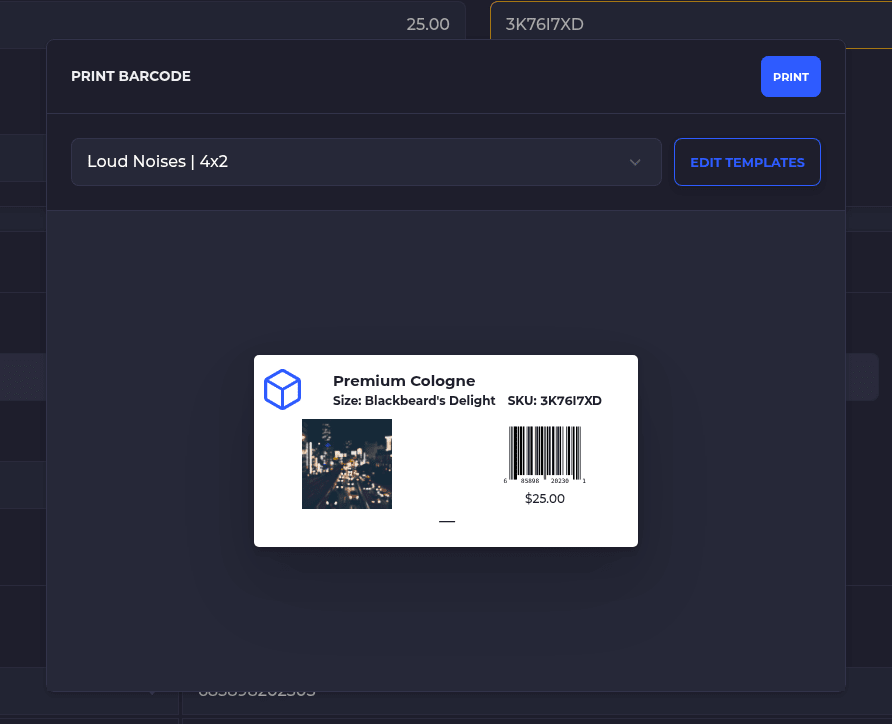
Want to make barcodes for your Shopify products? You have three real options. Shopify's own free Retail Barcode Labels app generates Code 128 barcodes and prints labels on Dymo or Zebra label printers, or on Avery sheets. A warehouse system like SKUSavvy pulls the barcodes you already have, generates SKU-based barcodes for products that have none, and prints product and bin labels your team scans while picking. And if you sell through retailers or marketplaces that ask for a GTIN, you need real UPC or EAN numbers from GS1.
That last point is where most people get burned. A barcode generator can draw any number you give it. It can't make that number a UPC a retailer will accept. So pick the barcode for the job first, then the tool.
Which barcode do you actually need?
| You want to | Use | Why |
|---|---|---|
Scan your own products in your own warehouse | A SKU-based Code 128 or Code 39 barcode | Only your own system has to read it, so no license is needed |
Sell through retailers, wholesale or marketplaces that require a GTIN | A GS1 UPC (12 digits) or EAN (13 digits) | Many retailers and marketplaces check that the number is licensed to your brand. A generated number isn't |
Products already arrive with a manufacturer UPC | The barcode that's already on the box | Don't relabel. Pull it from Shopify and scan it |
Shelves and bins | A bin or location barcode | It proves the picker is standing at the right spot |
SKU vs UPC vs internal barcodes
Three terms get mixed up in every Shopify barcode thread, so here's the short version.
SKU is your own name for a product variant, like TEE-BLK-M. Shopify stores it in the SKU field. It's text, not a barcode.
UPC / EAN is a GS1 number (a GTIN). The first digits are a company prefix licensed to one brand. Shopify stores it in the barcode field.
Internal barcode is a barcode that encodes something only you use, usually the SKU. Perfect for the warehouse. Meaningless to a retailer.
Why GS1 matters: many retailers and marketplaces look up the company prefix to confirm the product belongs to the brand selling it. Cheap resold or made-up UPCs can have a valid check digit and still fail that lookup, because the prefix isn't yours. If retail or marketplace listings are in your plan, license numbers from GS1 before you print anything you'll have to peel off later.
If every unit ships from your own warehouse to your own customers, you probably don't need GS1 at all. A SKU barcode does the job.
Shopify's own barcode options, and where they stop
Shopify gives every variant a barcode field. You can type a value in, import barcodes in bulk with a product CSV, or use Shopify's free Retail Barcode Labels app, which can generate Code 128 barcodes for your products and print labels.
A few limits worth knowing before you build a process on it: the label printer has to be connected to a desktop computer with its software installed, and Shopify says printing barcode labels isn't supported from the Shopify POS app. The app labels products. It doesn't know where those products live in your warehouse.
Stay with Shopify's app if
You have a store or a small back room
Labels are mostly for checkout scanning at POS
One person knows where everything is
Move to a WMS label flow if
You pick online orders from shelves and bins
New hires need to find and confirm items without asking
You want a wrong pick caught at the shelf, not by the customer
Barcode formats: Code 128 and Code 39 vs UPC and EAN
| Format | Holds | Use it for |
|---|---|---|
Code 128 | Letters, numbers and symbols, compact | Internal SKU labels. A common default |
Code 39 | Letters and numbers, wider | Older scanners and systems that expect it |
UPC-A | 12 digits, GS1-issued | Retail products sold in the US and Canada |
EAN-13 | 13 digits, GS1-issued | Retail products sold outside North America |
SKUSavvy scans UPC, EAN, Code 128 and Code 39, and generates SKU-based barcodes in the default format you set, such as Code 128 or Code 39. Stick to these 1D formats for product labels. QR codes are only supported for some use cases, so don't plan your product labels around them.
How to generate and print barcode labels in SKUSavvy
Here's the flow, start to finish. Full field-by-field detail lives in the [label template docs](/docs/guides/workflow-settings/barcode-label-creator).
Connect Shopify. Products that already have a UPC or EAN in Shopify come in with their barcodes. Nothing to retype.
Pick a format. Go to Settings → Barcodes → Default Item Barcode Format and choose CODE128 (or CODE39).
Generate barcodes for products that have none. SKUSavvy builds them from the SKU, so a code always maps back to a variant you recognize.
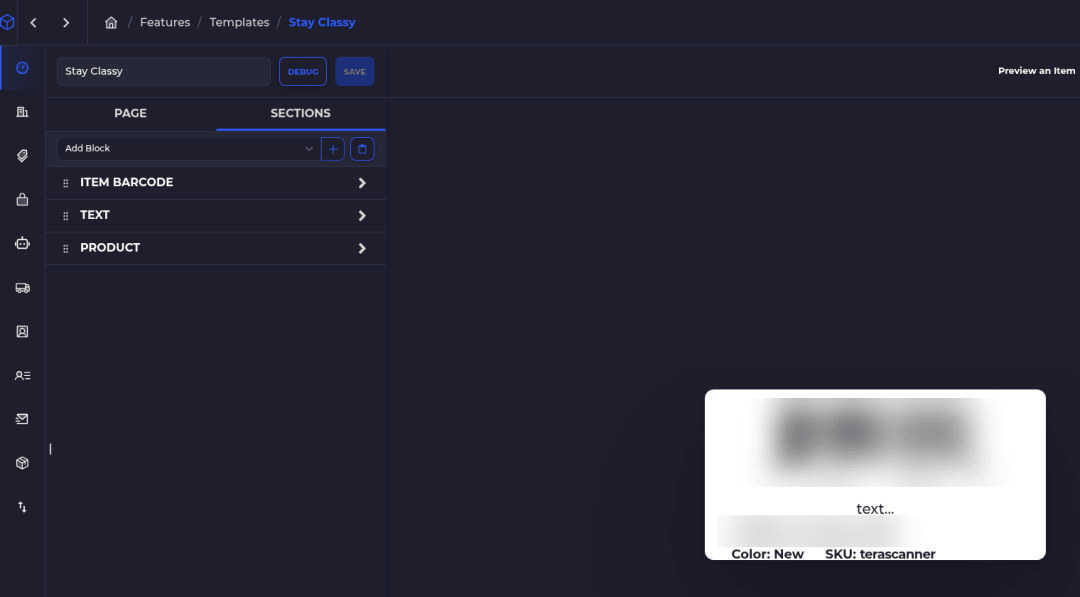
Design the label. In the company menu, open Templates (the Custom Templates page). A product label shows the SKU, product name and barcode.
Print to a thermal printer. Product labels can be 4x6, the common thermal size, or smaller: 2x1, 4x2, 4x4 or a custom size. Pick the size that fits the product, then stick the label on it.
Add alternates. One variant can carry several barcodes, like your primary UPC plus a vendor or internal code, so whatever is on the carton scans to the same item.
One planning note: SKU-based codes are for scans inside your warehouse. If your Shopify POS also has to scan that same label at checkout, set the barcode value in SKUSavvy to match the variant's barcode in Shopify, then check it before you rely on it at the register.
Bin labels and scan-to-verify picking
Barcodes on products tell you what something is. Barcodes on bins tell you where it is. You need both to stop mis-picks.
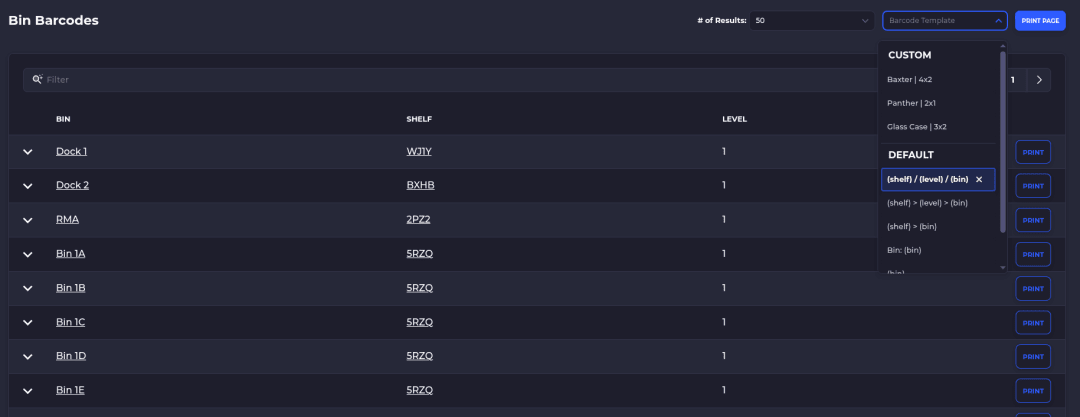
In SKUSavvy, print bin and location labels from Warehouse → Layout → Bins → Print Labels, which opens Bin Barcodes: pick a Barcode Template, then PRINT PAGE. Every bin gets its own barcode automatically. If your bins already have barcode labels, you can import those existing barcode values in SKUSavvy, so you don't have to relabel.
Then turn on bin and product scanning for picking in your fulfillment settings. During picking the picker scans the bin, then the product. Scan the wrong one and SKUSavvy shows a red alert, so the mistake gets caught at the shelf.
Scanners: what works
Most Bluetooth or USB scanners that type like a keyboard (HID) work, as long as you can add a scan prefix on the scanner. Teams use models like the Zebra DS2208 and LI3608, Honeywell Voyager 1200g and Socket Mobile 7Ci. A phone camera works too, it's just slower than a dedicated scanner. Hardware is bought separately, SKUSavvy doesn't bundle it. Supported formats and scanner setup are in the [barcodes guide](/docs/guides/barcodes).
When labels won't generate, and other limits
Two honest limits, so they don't catch you mid-setup.
"Value already exists" when turning on barcode auto-generation. This can happen when duplicate barcode values are already in the system, possibly from an import. Fix: Settings → Barcodes → Default Item Barcode Format, switch to a different format, update, switch back, then generate again.
SKU on the shipping label. Product labels show the SKU out of the box. Putting the SKU on a shipping label may need a custom label template.
Features and benefits
| Feature | What it gets you |
|---|---|
Pulls existing Shopify barcodes (UPC/EAN) | Products with real barcodes scan on day one, no relabeling |
Generates SKU-based Code 128 / Code 39 barcodes | Every SKU becomes scannable, even ones that never had a UPC |
Label template editor (Templates) | SKU, product name and barcode on a 4x6 thermal label, or a smaller size that fits the product |
Multiple barcodes per variant | Vendor codes and your own UPC both resolve to the same item |
Bin labels and scan bin, then product | Wrong-bin and wrong-item picks get caught at the shelf with a red alert |
HID scanners or a phone camera | Use compatible scanners you already own |
The AI part, kept honest
Where AI fits, honestly: making a barcode isn't an AI problem. A format plus a SKU in, a barcode out. That's exactly what you want from a label.
The AI in SKUSavvy is Savvy Bot, the in-app assistant. Ask it about your own products and inventory, have it run a report, or ask how a feature like barcode formats works, and it explains it and can take you to the right page. It reads and explains. It won't change anything unless you turn on edits and approve each one, and it runs on AI credits. Printing, labeling and scanning stay physical work on the floor.
Barcode generation and label printing are part of the SKUSavvy WMS, not a separate free tool. SKUSavvy is $179/month including your first 249 orders, then a per-order rate, with a 30-day trial. See [SKUSavvy pricing](/skusavvy-pricing) for how order volume changes the bill.
Start a 30-day trialShopify barcode generator FAQ
Short answers to what people ask most.
Does Shopify use barcodes?
Yes. Every Shopify product variant has a barcode field, usually holding a UPC, EAN or an internal code. Shopify POS can scan it at checkout, and warehouse systems like SKUSavvy read it for picking and receiving.
How can I create a free barcode for a product?
Shopify's free Retail Barcode Labels app can generate Code 128 barcodes and print labels. That's fine for internal use. A real UPC is not free: it comes from GS1, and retailers expect the number to be licensed to your brand.
Can SKUSavvy create UPC barcodes?
No. SKUSavvy reads the UPCs and EANs already on your Shopify products and generates internal, SKU-based barcodes for products without one. Official UPC and EAN numbers come from GS1.
What is the best barcode app for Shopify?
Depends on the job. For checkout labels in a store, Shopify's own Retail Barcode Labels app is a sensible start. For picking online orders from shelves and bins, you want a WMS that prints product and bin labels and checks each scan.
How much does a barcode generator cost?
Shopify's own label app is free. GS1 charges licensing fees for UPC numbers, so check GS1 US for current pricing. In SKUSavvy, barcode generation and labels come with the WMS, which is $179/month including your first 249 orders, then a per-order rate, with a 30-day trial.
What label size and printer should I use?
Use a thermal label printer. 4x6 is the common thermal size and works for product labels as well as bin and shipping labels. The label template editor (Templates) also offers 2x1, 4x2, 4x4 or a custom size, so you can pick a smaller label when it fits the product better.
Can I use QR codes on product labels?
Plan around 1D barcodes: UPC, EAN, Code 128 or Code 39. SKUSavvy supports QR only for some use cases, so it isn't the format to build your product labels on.
Which barcode scanners work with SKUSavvy?
Most Bluetooth or USB scanners that act as a keyboard (HID) and accept a scan prefix, such as the Zebra DS2208 or Honeywell Voyager 1200g, plus the phone camera. Scanners and printers are bought separately.
Keep reading
Label template docs
Build product, bin and shipping label templates, step by step.
Open the label guideWarehouse management software
How SKUSavvy runs bins, picking and packing next to Shopify.
Explore the WMSMake every SKU scannable.
Start a trial or check pricing for your order volume.