Inventory Scanning: A Practical Guide for Warehouses
Alex
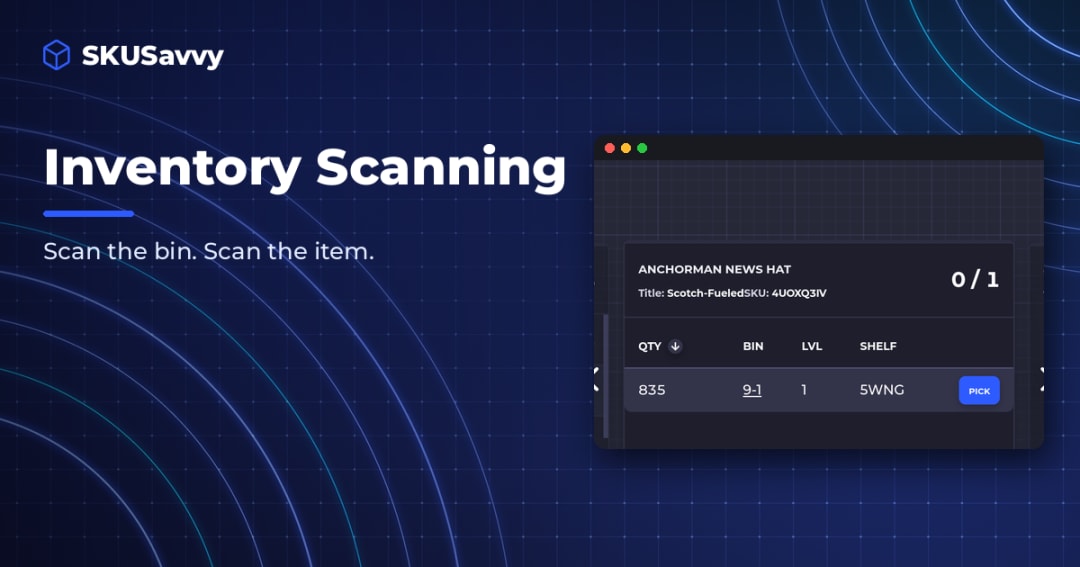
Inventory scanning means reading a barcode on a product, bin or shipment so your inventory system updates the moment stock moves. Done well, it replaces typing and memory with a beep, and the typing errors go with them.
This guide covers what to scan, what to scan with, and the exact moments in a warehouse where a scan pays for itself. It's written for teams shipping their own orders, from a back room with a few shelves to a warehouse with a second shift.
What inventory scanning is (and isn't)
A scan is just fast, accurate data entry. The scanner reads the code and types it into whatever screen is open. The value comes from the software on the other end: it has to know what that code means and what should happen next.
That's why scanning alone doesn't fix inventory. If your system only knows totals, a scan can add or subtract one, and that's it. If it knows bins, a scan can confirm the picker is at the right shelf holding the right item, which is where many mistakes happen.
What to label first
Start with the two things every move touches: products and bins.
Products: use the manufacturer barcode (UPC or EAN) when it's there. Only print your own label when an item has no code or its code is shared across variants.
Bins: every shelf slot gets a barcode with its name, like A-03-2. This is the label most small teams skip, and it's the one that stops wrong-bin picks.
Cartons and pallets: optional at first. Add them when you receive in full cases or move stock in bulk.
A common mistake is printing a new label for every product even when it already has a UPC. That doubles the labels to maintain and creates a second code that can drift from the first.
Where to scan: the five moments that matter
You don't need to scan everything. Scan at the moments where stock changes hands or changes place.
| Moment | What to scan | What it prevents |
|---|---|---|
Receiving | Each item against the purchase order | Short or over shipments slipping into stock unnoticed |
Put-away | The item, then the bin it goes into | Stock that exists in the system but nobody can find |
Picking | The bin, then the item | Wrong item or wrong variant shipped to a customer |
Transfers | From bin, item, to bin | Moves that happen on the floor but never in the system |
Cycle counts | The bin, then each item in it | Counts entered against the wrong shelf |
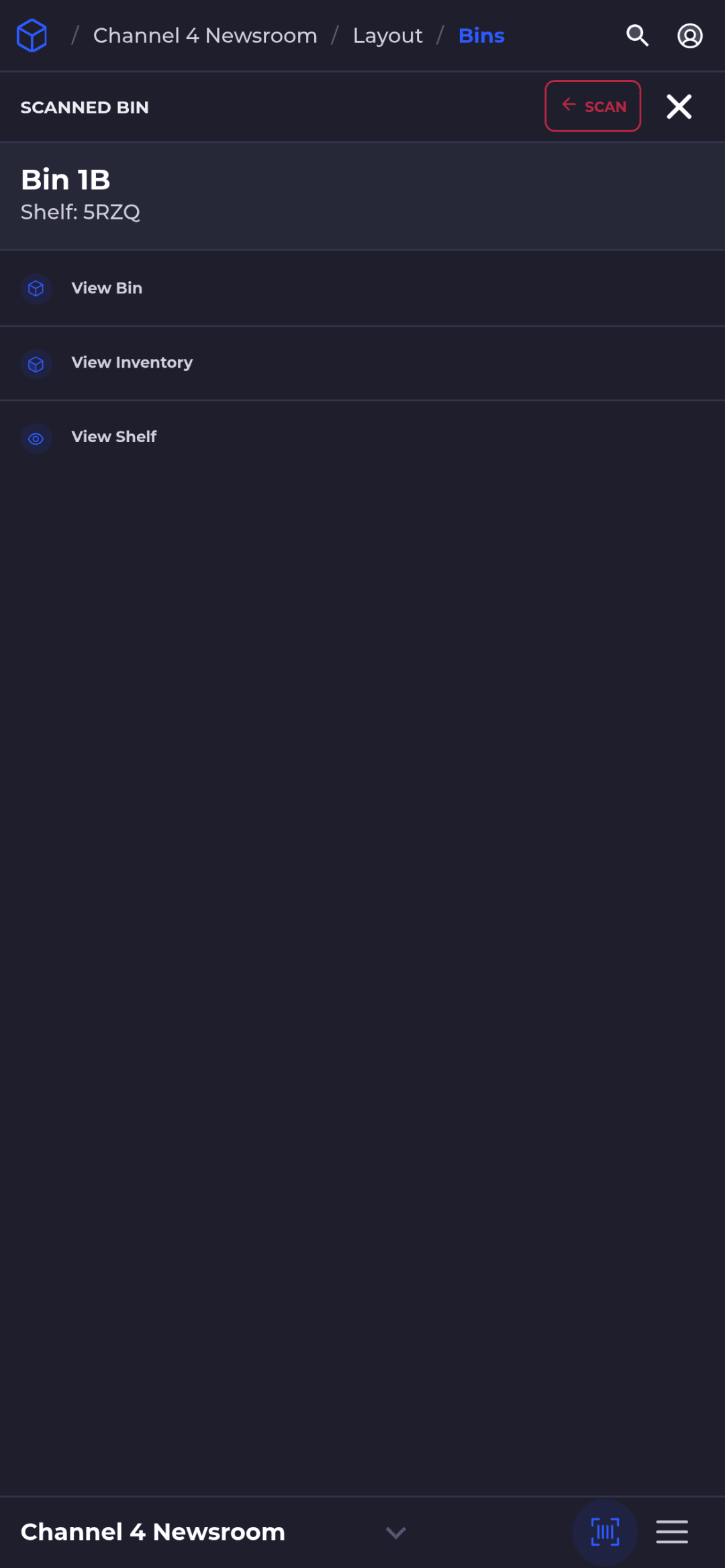
If you can only add scanning in one place, add it to picking. A wrong pick costs a return, a reship and a customer's trust. Receiving is a close second, because every error you let in at the dock shows up later as a stockout or a mystery overage.
Phone camera, Bluetooth scanner or rugged handheld?
All three work. The right choice depends on how many scans a person does per hour, not on how big the business is.
| Option | Best for | Watch out for |
|---|---|---|
Phone camera | Getting started, occasional scans, counts in a small room | Slower in dim light and on curved or glossy labels |
Bluetooth or USB scanner | Anyone who scans all day: pickers, receivers | Pair it once per device and keep spares charged |
Rugged handheld | Cold storage, drops, gloves, long shifts | Higher cost per device; check that your software runs in its browser |
Most hardware scanners act like a keyboard: point, pull the trigger, and the code is typed into the active field. That means any software that accepts typed input can take a scan, but only software built for scanning will check it.
How to set up inventory scanning in a week
Pick the system first. Decide where the quantity lives and make sure it can tell you what a scanned code is.
Name and label your bins. A simple pattern (zone, aisle, shelf, level) is enough. Print labels big enough to scan from a cart.
Check product barcodes. Scan a sample of SKUs and fix the ones that don't match or don't scan.
Do a starting count by bin. Scanning won't fix a wrong starting number, so count once, bin by bin.
Turn on scan checks at picking and receiving. Then add put-away, transfers and counts once the team is used to it.
Watch the exceptions for two weeks. Every skipped or failed scan tells you about a bad label, a missing code or a training gap.
Common inventory scanning mistakes
Scanning the item but not the bin, so the system knows what moved but not where it went.
Letting people type a quantity instead of scanning when they're busy. Make the exception visible, not invisible.
Labels at knee height on the bottom shelf with tape over them. Glare and creases cause a lot of missed scans.
Two systems that both think they own the count. Pick one source of truth and make the other follow it.
Inventory scanning in Shopify
If you sell on Shopify, the Shopify mobile app includes an inventory scanner that can assign a barcode to a product, add one unit with each scan and adjust quantity at a location. It's a reasonable first step for a store with one stockroom.
What it doesn't track is how many units sit on each shelf. Shopify can store one bin name per product at each location, but it tracks quantity by location, not by bin, and it doesn't guide receiving, put-away or picking with scan checks. When more than one person picks orders, that's the gap a warehouse system fills.
How SKUSavvy handles scanning
SKUSavvy is a warehouse system for Shopify sellers, and it's built around the scan. Here's what you get and why it matters on the floor.
| Feature | What it gets you |
|---|---|
Scan anything | Scan a product, bin or shipment from any screen and SKUSavvy pulls it up |
Scan-checked receiving | Check in a purchase order by scanning, and short or over shipments show up as discrepancies on the PO |
Directed put-away | New stock goes to a bin the system points to, so the next picker finds it |
Routed picking with scan checks | Pickers follow a path on the map, and a wrong bin or item gets a red alert before it ships |
Cycle counts by bin | Count a few bins while picking continues; differences are logged with who counted and when |
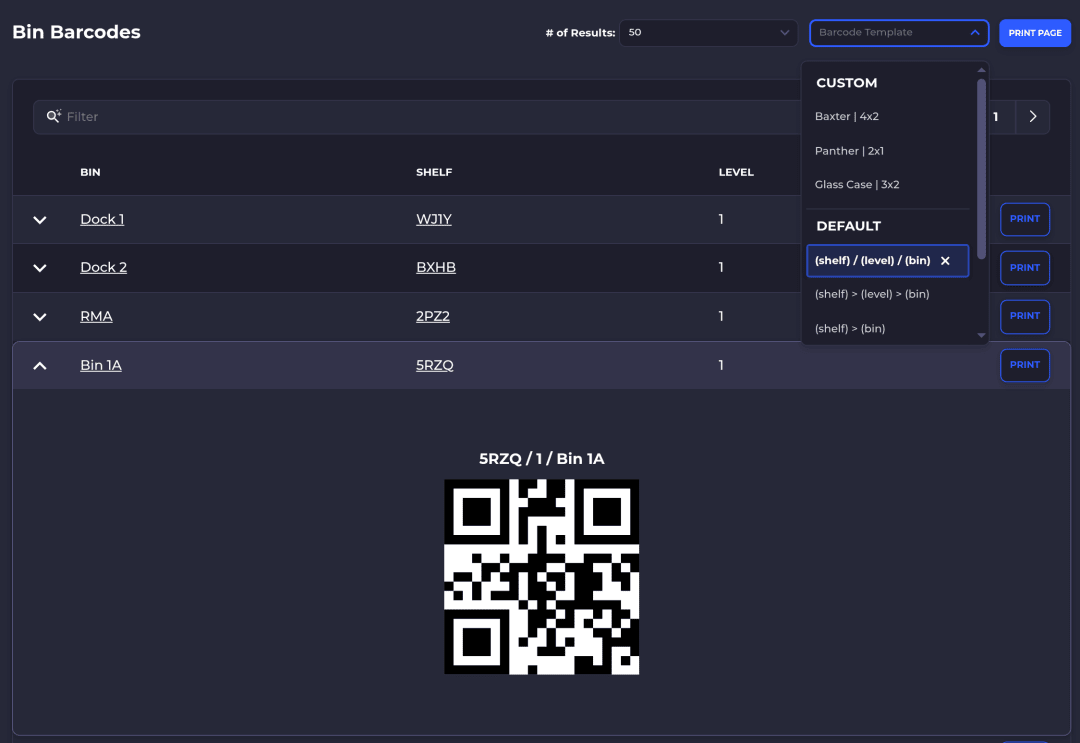
Bin barcodes and labels | Import bin barcodes in the app and print labels in 2x1, 4x2, 4x4, 4x6 or a custom size |
Phone camera or hardware scanner | Every screen has a camera scan button, and Bluetooth or USB scanners work like a keyboard |
Runs in the browser | SKUSavvy is a web app (PWA), so phones and tablets you already own can scan with nothing to install from an app store |
Every format SKUSavvy prints and scans, plus scanner setup, is in the supported barcode formats guide. If you organize stock by SKU first, see SKU-based inventory.
As of October 17, 2026, SKUSavvy is $179/month, which covers your first 249 orders, with a per-order rate past that which falls as volume grows. Users are unlimited, plans are month to month, and the 30-day trial needs no credit card. Scanners and printers are bought separately.
Start a 30-day trialInventory scanning FAQ
What is inventory scanning?
Reading a barcode on a product, bin or shipment so your inventory system updates as stock moves, instead of typing quantities by hand.
What is the best scanner for inventory management?
For most teams, a Bluetooth or USB scanner for anyone who scans all day, and the phone camera for everyone else. Choose rugged handhelds only for cold, drops or gloves.
Can I use my phone to scan inventory?
Yes. Many inventory apps scan with the phone camera. In SKUSavvy every screen has a camera scan button, and it runs in the phone's browser.
Do I need to print my own barcodes?
Usually only for bins and for items without a working manufacturer barcode. Use the UPC or EAN already on the product when you can.
Is scanning enough to keep inventory accurate?
No. Scanning removes typing errors. You still need a correct starting count, labeled bins, scan checks at picking and receiving, and regular cycle counts.
Keep reading
Supported barcode formats
Formats SKUSavvy prints and scans, and how to set up camera and hardware scanners.
Read the guideSKU-based inventory
Organize and track stock by SKU and by bin, in step with your Shopify store.
See how it worksScan the bin. Scan the item. Ship the right order.
Start a 30-day trial or check pricing for your order volume.