Supported Barcode Formats in SKUSavvy
Every barcode format SKUSavvy prints and scans, from UPC, EAN and Code 128 to QR, plus how to scan with a phone camera or a hardware scanner.
Barcode Formats
UPC-A
UPC-E
QR
CodeAbar
CODE128
CODE-39
EAN-13
EAN-8
ITF14
MSI
pharmacode
Plan to set your default barcode formats within SKUSavvy right after opening your account so all generated barcodes will adhere to this formatting.
Camera Scanning
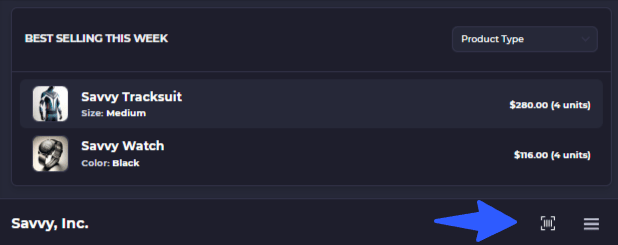
You can use the camera on any device to scan barcodes within SKUSavvy. To do so find the barcode scanning icon on any screen. Look for this icon in the bottom navigation bar on mobile devices, or at the bottom of the left side menu on larger format devices such as laptops and computers.

Note that we generally recommend using hardware scanning devices over camera scanners to have maximum efficiency with scanning.
Large Screen Scan Anything

Mobile Scan Anything
Hardware Scanners
If you use a hardware scanner you can just start scanning, you do not need to click any button to scan
The best way to scan barcodes within SKUSavvy is to use a hardware scanner. Almost any barcode scanner will work, however it must meet the following criteria:
Bluetooth compatibility
You can add a prefix to the scan - this is added on the hardware scanner directly
You have turned on the hardware scanning option on SKUSavvy
When a hardware scanner is connected, all scans within the platform are contextual in nature. That means depending on the page you are on within SKUSavvy the system will use the scan data to take actions on that page. Where are scan contextually recognized?
If you are not in a page where SKUSavvy is expecting a scan for an item or bin label this is considered a 'Scan Anything' and will pull up the relevant information for this scan: product, bin, shipment, or unrecognized
Purchase order check-in
Order picking
Order fulfillment during the packing stage
Cycle counts
Bulk allocation of stock to bins
Transfer pick/pack
Transfer check-in
Ad-hoc movement of inventory (scanning a bin to transfer into)
Adding products to create a new PO, transfer, or outbound order
New ad-hoc adjustment of inventory