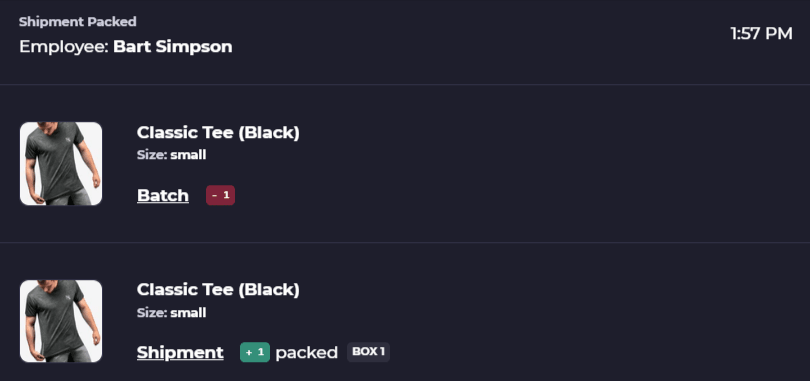
Employee Productivity Analytics
This will enable you to see exactly how many actions an employee has taken within a warehouse and compare across employees.
Employee Productivity
Each employee assigned to a specific warehouse will have an associated record that provides information on the actions of that employee and the audit logs of a particular employee. Metrics include check-ins, picks, and fulfilled orders.
View Employee Productivity MetricsPicked
This metric shows you how many items a single employee has picked over the date range selected, or as a total
Packed
This metric shows how many items an employee has packaged up for orders going out over a given period of time or as a total.
Checked
This metric shows how many items an employee has checked in from a purchase order or by scanning the product directly to a bin location.
View Employee Metrics
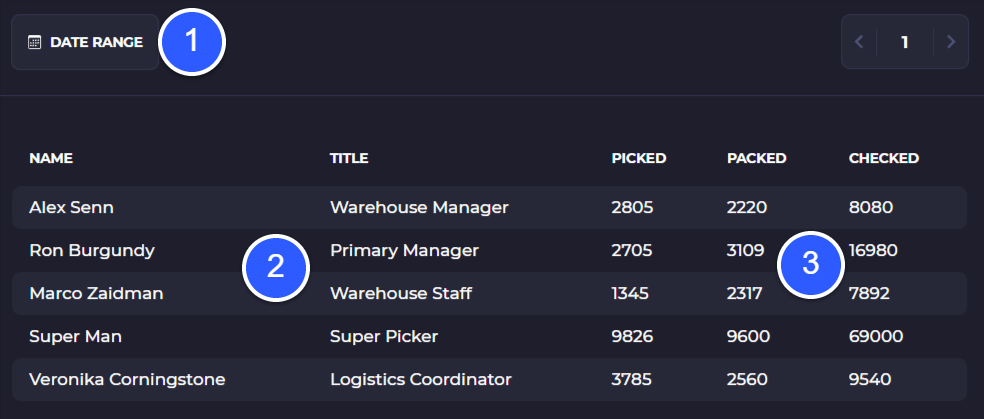
Optionally select a date range you want to view productivity metrics for
View all employees and their title, select a record to view detailed metrics and individual employee logs
View total actions across all employees for the current warehouse
Productivity Detail
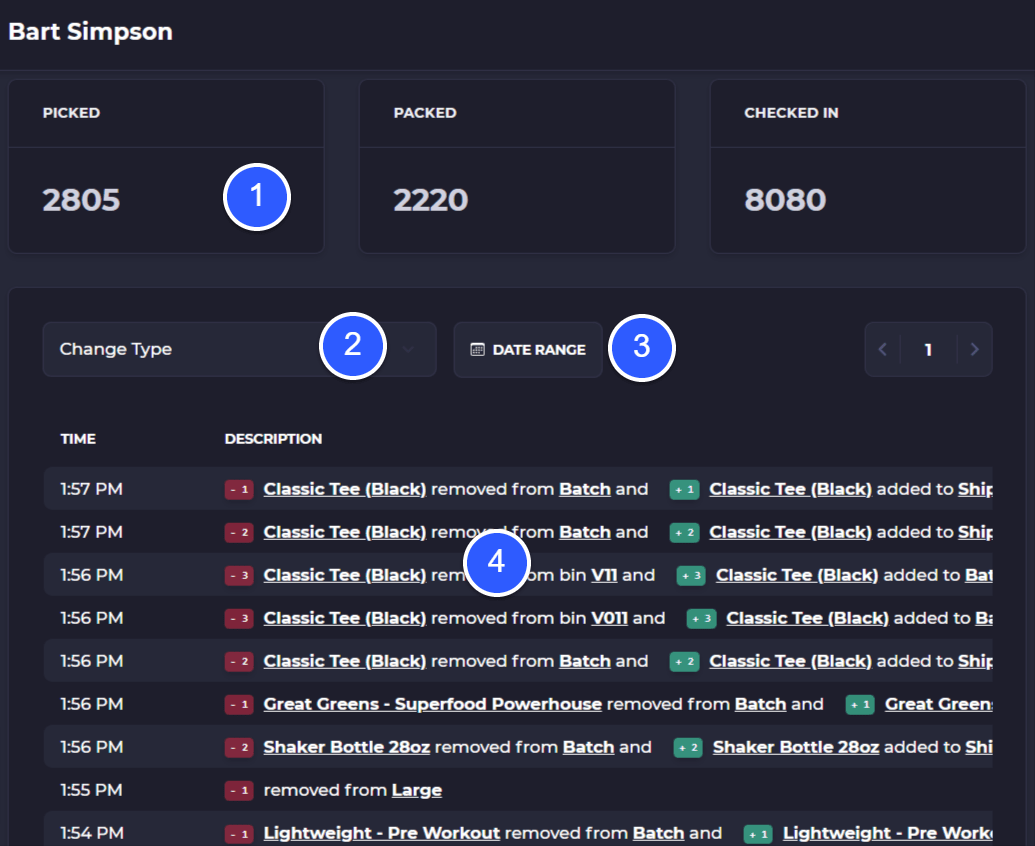
Each employee within a warehouse also has a detailed productivity dashboard. Access it by clicking on a record within Employees > Analytics. This shows the three primary metrics, along with a table of every action taken by the employee. Every item movement is shown in the table, which can be clicked on to further explore details of the inventory movement.
Metrics for picked, packed, checked-in quantities for the selected employee
Select a type of change log to view: order picked, order packed, kit assembled, kit picked, inventory imported, inventory allocated, external fulfillments, inventory changed, inventory deleted, inventory moved, order checked-in, cycle counted
Select a date range to view actions within that range
View individual logs, click into a log to view the details of that log
Employee Productivity Log Detail