How to Import Purchase Orders
Using purchase order imports will make it easy to place large purchases from a vendor while keeping data integrity in-tact.
Purchase Order Import
You can easily add items to a purchase order via import. The import will also create new vendor product relationships for those products not already assigned to the vendor.
To add items in bulk to your purchase you'll need to first initiate the creation of a PO and select a vendor, at which point items for that vendor can be imported and added automatically to the PO.
Video Overview
File Template
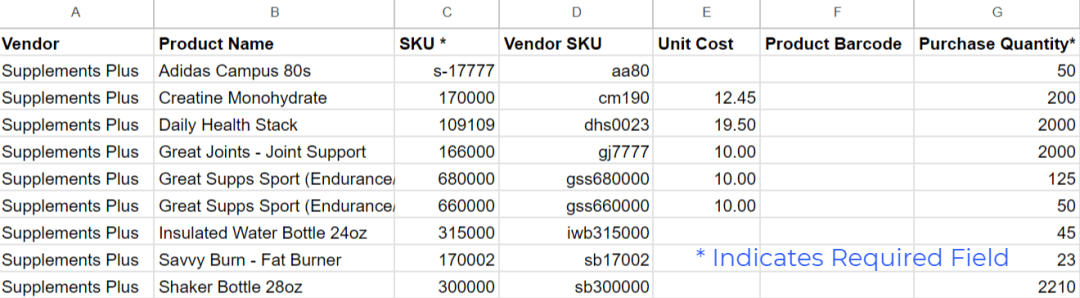
Your import file should have a similar structure to the file below. You can make a copy of the import file for your own use as well by clicking the link below.
Available Import Fields: SKU, Item Barcode, Vendor SKU, Cost, Quantity, Serial #, Lot # and Lot Expiration (if lot/expiration tracking is enabled)
Purchase order imports should be ONE vendor at a time
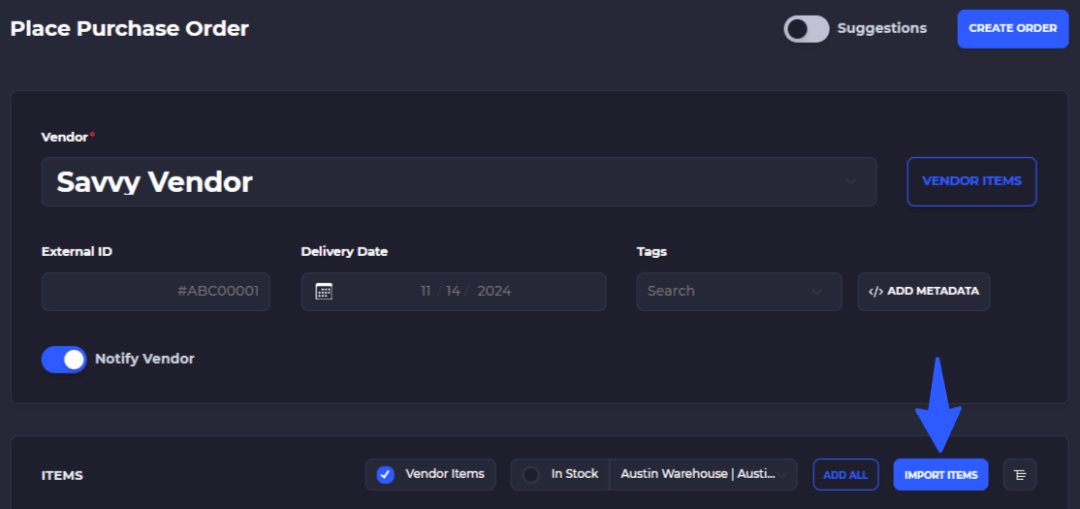
Import Your PO
To import you first need to start the creation of a PO, then select 'Import' from this creation screen.
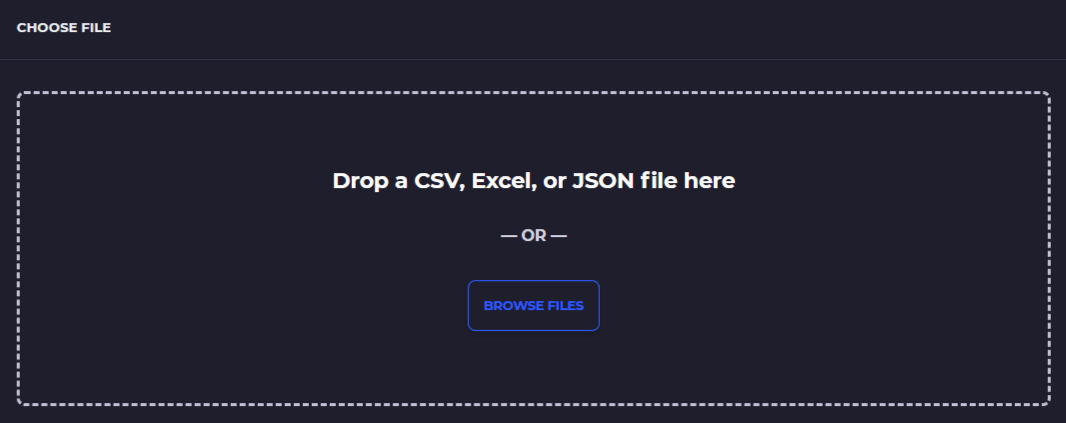
You can import using CSV, Excel, or JSON formats
Select Import File
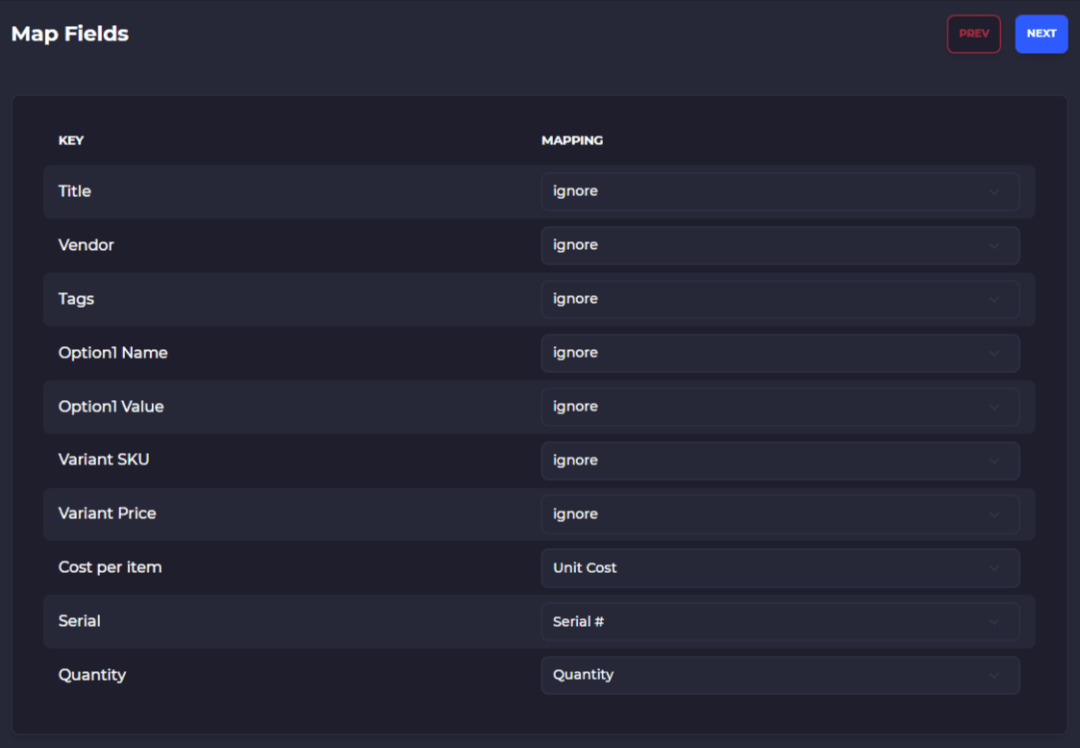
Map Fields
Select the mapping fields
Select 'Next'
Edit Import Data
1) You can remap the column names by selecting the dropdown on that column heading
2) Directly edit column data by clicking into a cell
3) Change which product the data applies to
4) Select whether or not to import the row
Click on 'Import All' when satisfied

View Import Quantities
Once your items have imported to the purchase order you can view the added items and make adjustments if needed.
1) The blue dot indicates the item is added to the purchase order
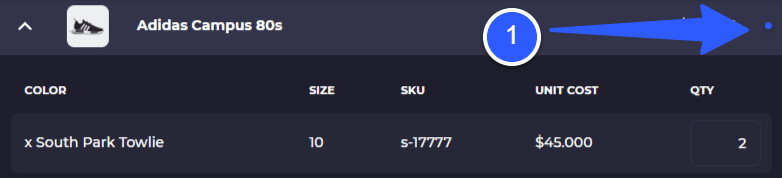
At the bottom of your purchase order is the summary of items and their costs on this purchase

Vendor/Product Setup
Set up your vendors and the related products to begin creating purchase orders
PO Approval Workflow
Have SKUSavvy send your purchase orders directly to the vendor to approve or adjust