Kit Assembly and Kitting for Shopify
Build kits in SKUSavvy: pre-assemble kit stock from components or kit in line during picking, unpick a kit, and share buildable kit counts with Shopify.
Video Overview
Kit Requirements
Must have both the output product and each of the inputs as products within SKUSavvy
Must have inventory available for each of the inputs to create a finished kit
On Shopify you only need to have the kit listed, the inputs can live within SKUSavvy without being on Shopify if you are not selling the individual components of the kit
What is Kitting
Using kits enables you to build bundles, and handle light assemblies of product. Some companies use this as light manufacturing, which it certainly can serve as. What this kitting feature won't do is track production batches with shrinkage, multi-part components, or other more complicated manufacturing.
In SKUSavvy the kit 'recipe' must first be created to establish relationships between the products. Then you can click on 'Assemble' and select the warehouse you want to assemble to kit from or simply go into a warehouse and select 'Inventory > Kitting' to choose which kit you want to assemble.
You can now choose to preassemble the kit and allocate the inventory to a bin location OR assemble the kit in-line during picking
Kit Creation
Using this tool with enable you to create combinations of products that make up another product, or products. Kits can contain one-to-one, one-to-many, many-to-one, or many-to-many relationships.

A kit's stock is what you have assembled and stored in a bin. To also show Shopify how many kits you could build from ingredients in stock, turn on Buildable Kit Sync.

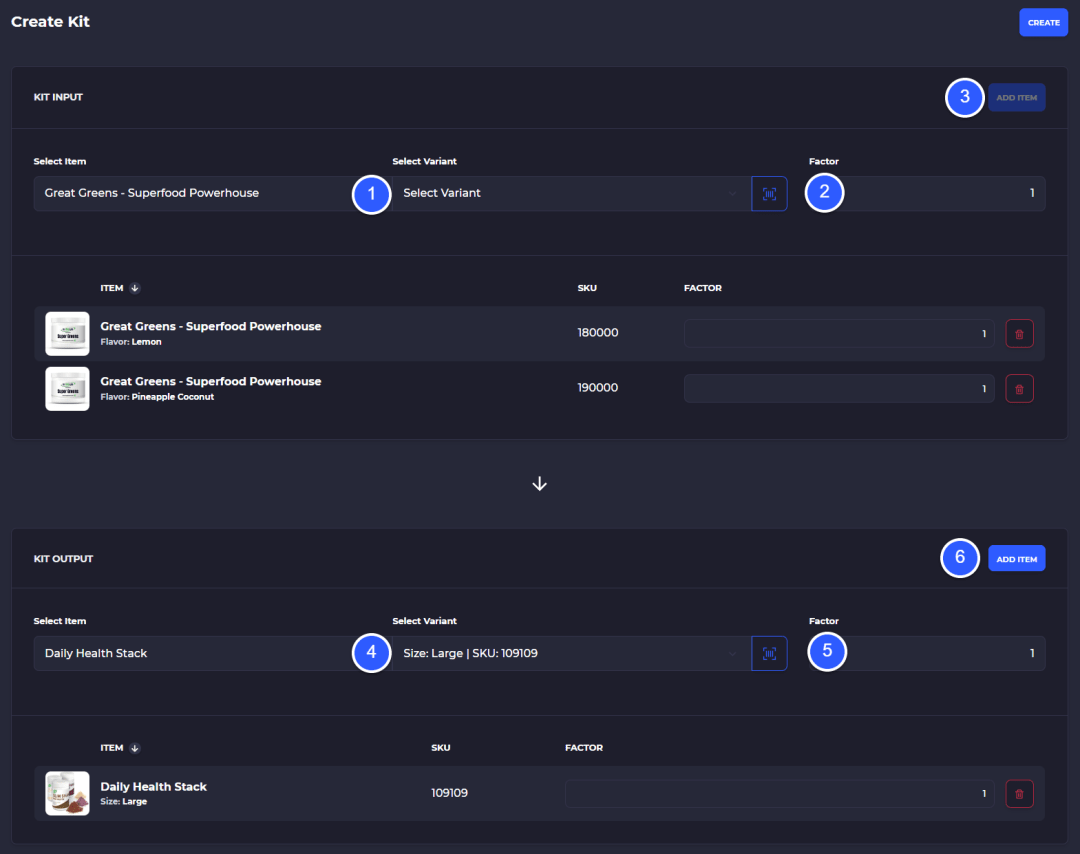
Input = a product that makes up part of or the whole of the kit
Output = the finished kit after all inputs have been added and the kit converted to this output product
Select at least one input product
Enter the quantity (factor) needed for this product to make the final output
Add this product to the input side of your kit
Select at least one output product (final kit)
Enter the quantity (factor) that this kit will create when all inputs are converted to this output
Add the output to your kit recipe
Create your kit, you can edit, delete, or duplicate this kit after creation.
View Kits
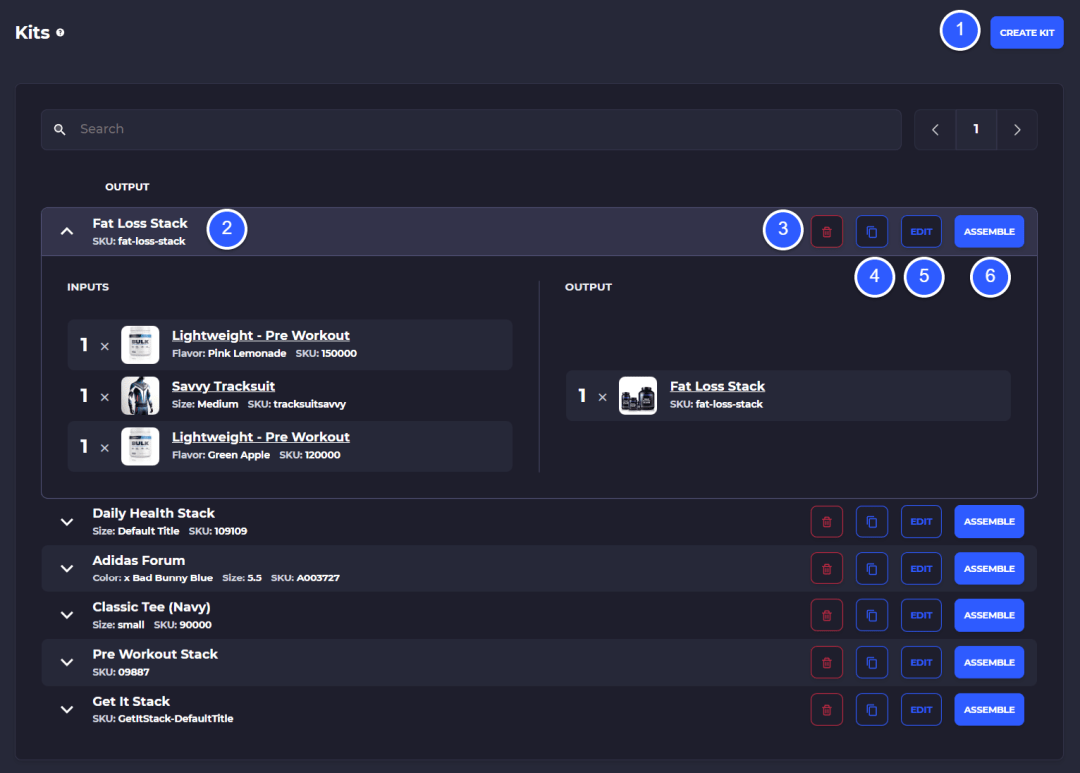
Within your SKUSavvy account under products you can view existing kits to make edits, copy, or delete them as well as the initiate building a kit.
Create a new kit
View existing kits, click or tap the caret icon to show the inputs and outputs
Delete the kit
Copy this kit and make a new version
Edit the kit
Assemble the kit within a warehouse and allocate to a bin
Viewing Companywide Kits
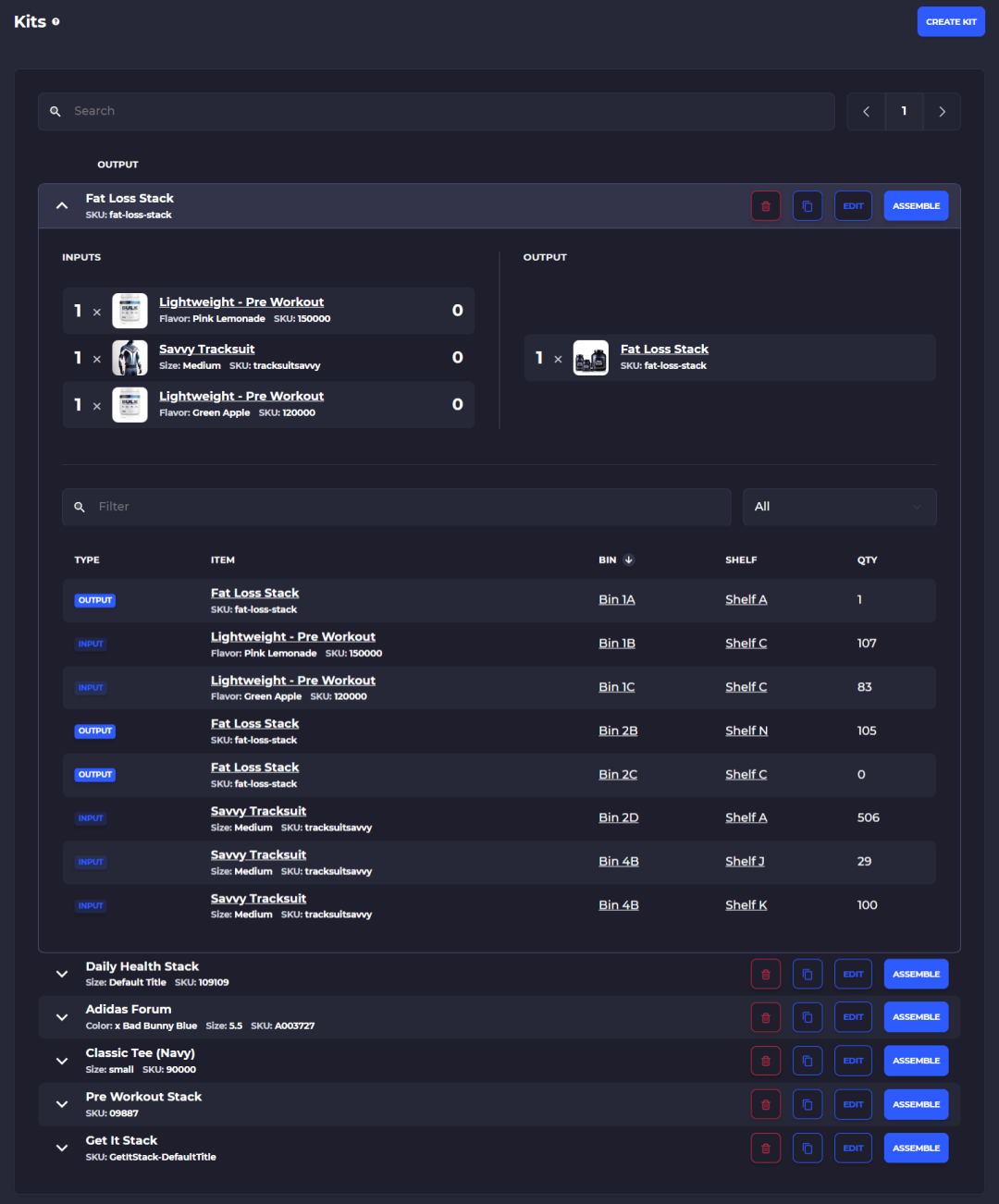
Viewing Warehouse Kits
From within a warehouse you can view your kits and see how much of each input and output is currently available for the kit as well as bin locations each item is held.
Pre-Assemble Bundle Inventory
When you pre-assemble a kit, you will first pick each individual component of the kit from around your warehouse then allocate the converted finished bundle inventory to a bin location in your warehouse.
Enter the warehouse you plan to assemble the kit
Click on Inventory > Kitting to show kits available to make
Click 'Assemble Kit' on the kit you want to build
Once you select the kit you want to build, SKUSavvy will take you through a mini pick to show you the bin location of individual items within the kit, and a quantity to grab to assemble one unit of the kit. You can assemble multiple kit quantity by multiplying the kit quantities needed to make that number of kits.
Shows number units for that item currently picked
Shows each location on the map for an item in the kit to pick from
Once all items have been picked, this is how you convert those items into the completed kit quantity. The quantity shown here is the complete kits that can be created from the inventory picked
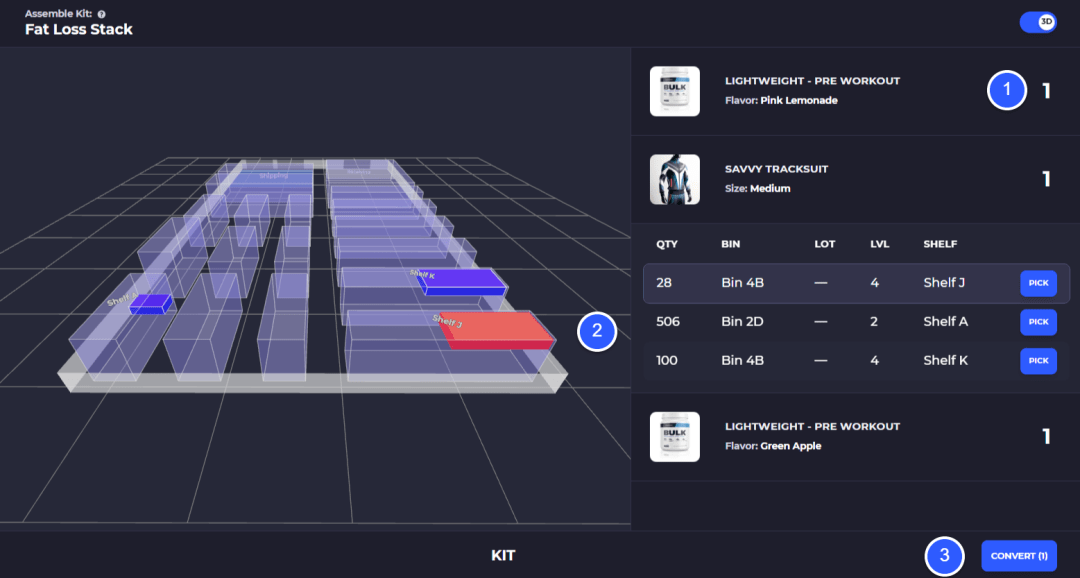
Once you convert the kit SKUSavvy will allocate that quantity of available inventory to the kit in the bin you select. You can choose to allocated completed kit quantity to more than one bin location.
Select the quantity of the completed kit you want to allocate to a bin (can be less than the total converted quantity, but not more than the total completed kit quantity)
Choose a bin location to allocate the kit quantity

In-Line Kitting During Picking
With SKUSavvy you can accept orders for bundles and assemble the bundle during a pick batch just like any other product pick. If you receive an order for the kit and you have not assembled any kit quantity a button will appear to 'Assemble Kit' which will take you through a kit assembly within the pick batch and automatically allocate the inventory to the kit.
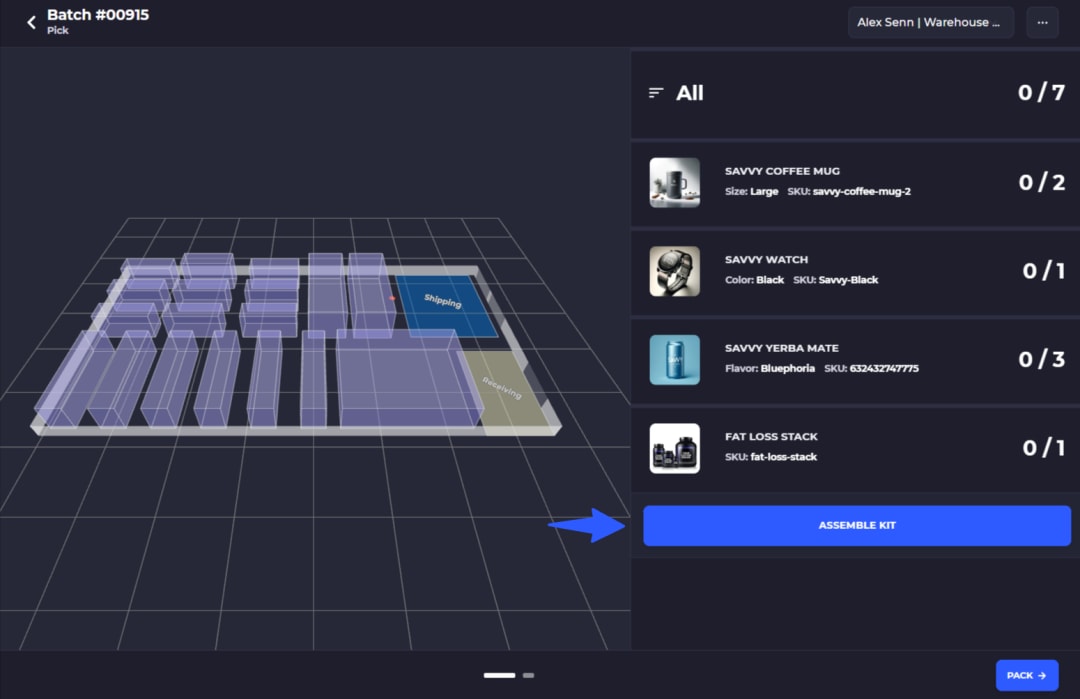
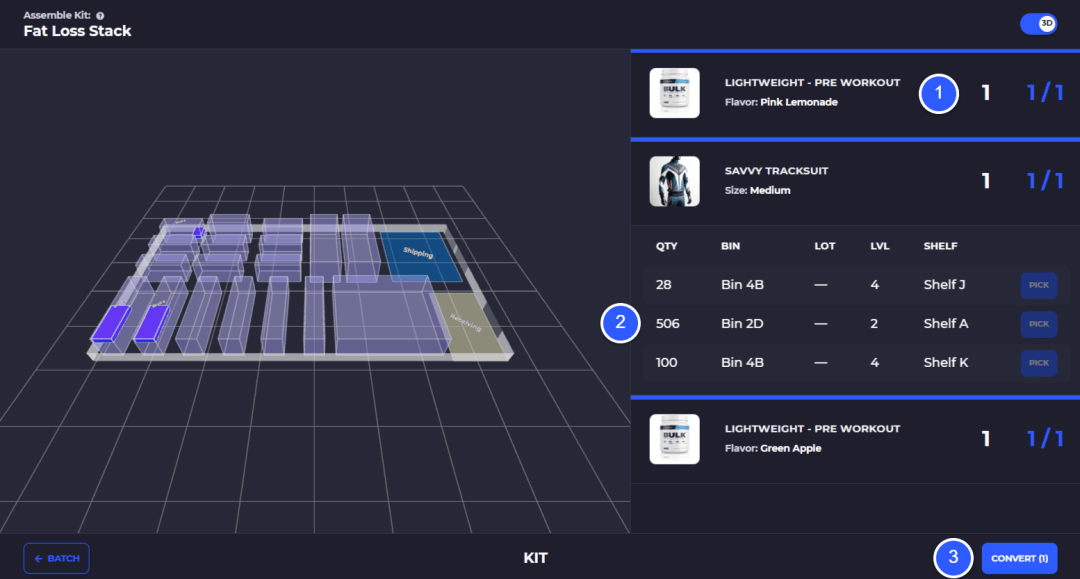
When you click on the 'Assemble Kit' button SKUSavvy will take you through the kit assembly to get the number of kits built that are needed to complete the order.
Quantity needed to complete the kit
Location(s) of the item and 'Pick' button (if there are more than one item within the kit contained in this bin SKUSavvy will prompt you to select the item you are picking for the kit
Once all items are picked convert the kit into completed kit quantity which will automatically be allocated to the order
Unpick a Kit
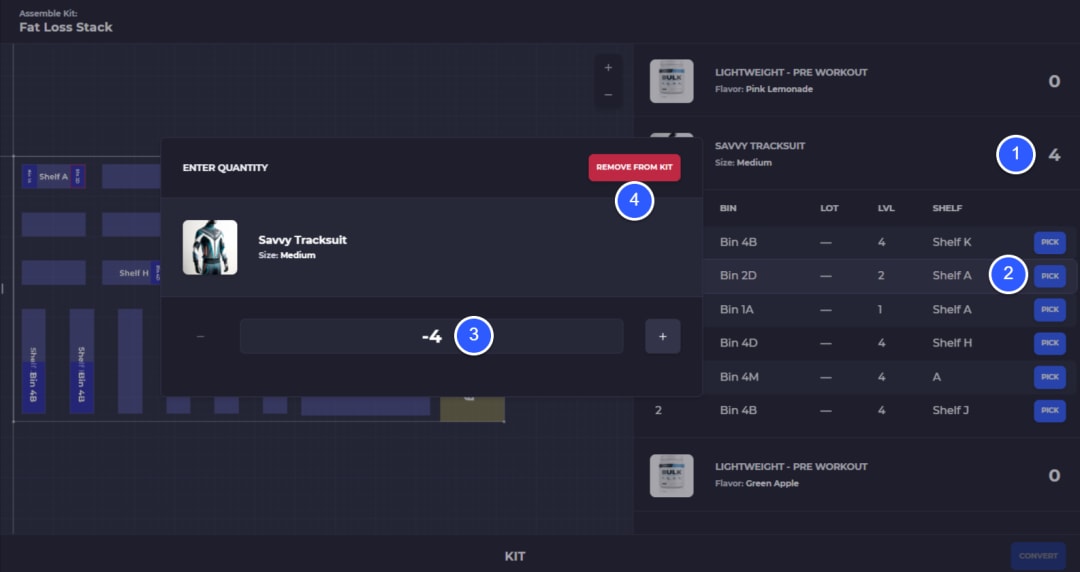
To return picked kit inputs back to on-hand inventory, use the 'Unpick' button next to the picked line item.
Note: as soon as you start to pick a kit (both in-line and pre-assembly) that inventory will be taken from your on-hand inventory so if you intend not to fully convert the kit it is very important to unpick the kit!
After you have picked one of the kit inputs this is indicated on the kit pick list
Click 'Unpick' next to the item you want to return
Select the bin you want to return the quantity to
Enter the quantity to return (you can only return up to the amount already picked)
Click 'Remove' to send the stock back to that bin
Manage Your Shopify Inventory
Learn everything about the inventory sync between SKUSavvy and Shopify